
This article provides a guide on allocating your extended dashboards.
In order to access this module you will need a licence; to purchase licences please contact your account manager.
Firstly, you will need to login to your management portal. You can do this here
Navigate to the user management tab and click on the user that you’d like to give access to extended dashboards.
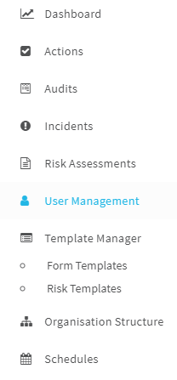
Only users with access to the user management tab will have permissions to allocate dashboards and module access. Please contact your user administrator if you do not have access.
Step 1: Granting application access
In order to access the right dashboards, the user must have access to the modules that correspond to the dashboards that they will need.
For example: If you’d like a user to have access to the Audit Tracker dashboard, they must first have the audit module switched on.
To do this, click edit at the top of the page
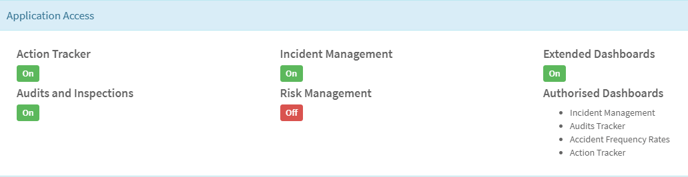
 Scroll down to the application access section and switch on the modules that they need using the toggles, as well as the extended dashboard module shown below:
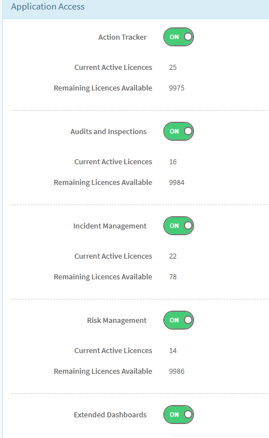
The dashboards available and their corresponding modules are as follow:
-
Accident Frequency Rate | Incident Management
-
Incident Management | Incident Management
-
Audits Tracker | Audits & Inspections
-
Action Tracker | Action Tracking
Step 2: Allocating the dashboards
Once the right modules are switched on you can allocate the dashboards.
To do this, select which dashboards you’d like using the drop down that will appear by clicking in the ‘available dashboards’ box.
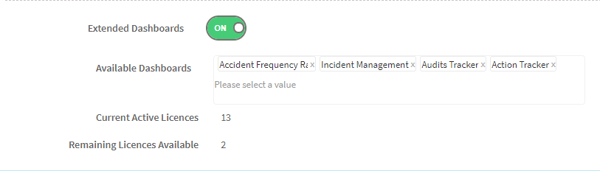
Click save once you’re happy with the changes you have made.
Once you have saved the profile, you will see on the application access section of the user’s profile which dashboards they have access to.
For further video insights on these dashboards, please follow the links below: